
In this guide I will be looking at some of the best backup software which supports the restoring of disk image-based backups onto new or dissimilar hardware. This is a process which can make the migration of an existing live system across to new or simply different PC hardware as quick and effective as is possible.
One of the key issues faced by many when buying a new or otherwise different PC is the need to migrate all documents, system settings, installed software plus the operating system itself from the existing device across to the new one. In many cases this might involve transferring data manually using external hard drives, flash drives or cloud storage services alongside the need to manually re-install and re-configure the operating system plus all existing software from scratch.
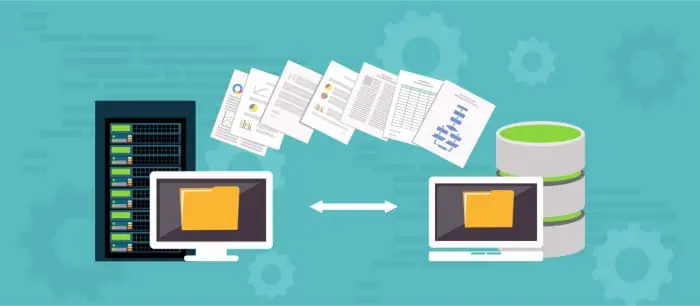
In light of this often time consuming and complex manual process, several backup software developers have in recent years started to offer solutions for recovering disk image-based backups across to new or dissimilar hardware automatically (which is sometimes referred to as “universal restore”). In essence, restoring to dissimilar hardware means that a disk image-based backup of an existing device can subsequently be recovered onto new hardware with any differences (different device drivers, larger hard disks etc.) all automatically taken care of during the migration process by the backup software itself.
| Provider | Solution | Pricing | Website | |
|---|---|---|---|---|
| 1 |  | True Image | From $49.99 / year | |
| 2 |  | ToDo Backup Home | From $39.95 | |
| 3 |  | DiskImage 20 | From $49.95 | |
| 4 |  | Reflect X Home | From $49.99 / year | |
| 5 |  | Backupper (Professional) | From $39.95 |
One of the key components in understanding how restoring to dissimilar hardware works begins with understanding how disk image backups themselves work (and crucially how they are different from file-level backups).
When making a file level backup of a system we are only backing up the actual files and folders which reside on the device being backed-up. Such backups are usually confined to just important parts of the device such as the current user’s “Documents” folder (within Windows) which will almost always be the default place for saving documents.
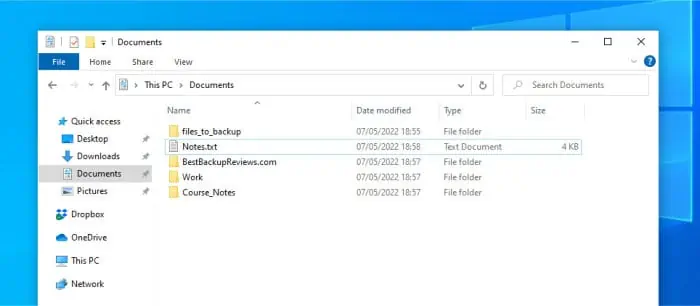
As can be seen above (in many cases), when making a file level backup on a Windows device, we can simply backup the current user’s “Documents” folder to provide a reasonably good level of data protection overall (and this will usually suffice unless you have specific reasons not to back this folder up or have knowingly saved files in other locations).
When moving on to look at disk image backups and we start to see a very different backup technology coming into play. This is a technology which will, instead of imply selecting individual files, instead make a mirror copy of the physical system disk (or disks) and compress and compile this copy into a single file which can then safely stored else ware. By default, due to this approach of imaging (copying) the entire disk itself, this method will automatically also capture all user data, any installed applications plus the device’s operating system as a part of the backup.
Modern disk imaging technology is also becoming highly advanced and can actually accommodate for excluding certain files and file types from a disk image backup as well as producing incremental disk image-based backups in order to help keep file sizes more manageable. Additionally, as is the main subject of this guide, modern disk imaging backup technology can also adjust system settings within the disk image itself to allow said image to be recoverable on dissimilar hardware when applicable to do so.
A closely related technology to that of disk imaging backup software is disk cloning software, often used for moving (migrating) an entire active system (with all data, applications and settings included) over to a new, often larger hard disk or a faster SSD drive.
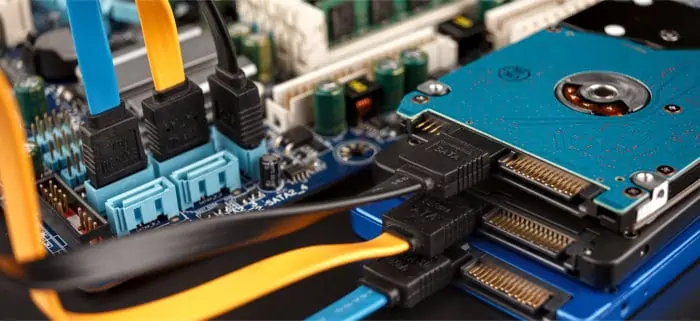
What makes disk cloning software slightly different to disk imaging-based backup software is that with disk cloning software the migration process usually happens directly between two different disks at the same time (i.e., in real time) with no data saved else ware. Some disk cloning software will take a hybrid approach and allow a disk to be imaged, said image saved to a file and then recovered from this file onto a replacement disk at a later date, but even when this is the case this file almost always remains an exact copy of the original disk with no considerations for different hardware in place.
Where disk cloning software often becomes less useful is when trying to migrate an existing device over to a completely new PC comprised of new or otherwise different hardware. In many cases the disk cloning software will be configured to simply make an exact clone of the original disk meaning the new hardware won’t be taken into account as a part of the recovery process (which could potentially lead to problems occurring when recovering such a disk image without the proper adjustments being made).
Previously known as Cyber Protect Home Office, Acronis True Image is a leading backup solution featuring some of the best tools both for making disk image-based backups and recovering from these same backups on to new or dissimilar hardware.
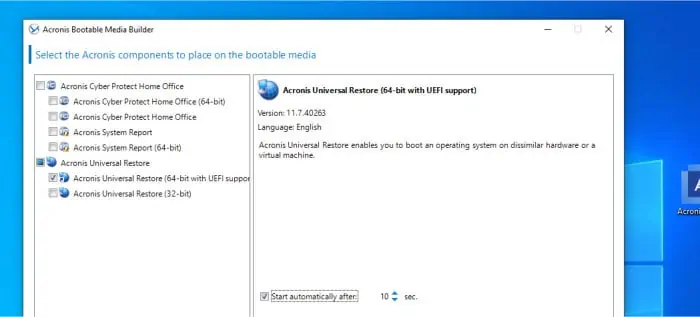
When attempting to recover to dissimilar hardware, True Image features a specialist universal restore media building tool which will, amongst other features, prepare special recovery media which can insert suitable device drivers and further optimise the recovery process to making it suitable for dissimilar hardware.
With the Acronis universal restore functionality set aside, True Image is also a powerful backup solution in its own right featuring the ability to make both disk image and file level backups, utilise network drives for storage plus also make use of both locally attached external disks or the Acronis cloud for saving data. True Image is also a highly secure backup application featuring strong AES 256-bit encryption technology, use of the Acronis Secure Zone storage protection technology plus the option to use the highly rated antivirus component which is integrated into the software itself.

With these core backup and security features set aside, we also see many other useful functions found within the True Image application. Such additional features include built-in file sharing and file synchronisation functionality, file archiving tools, support for backing-up Microsoft Office 365 accounts plus smartphone apps for directly backing up both iOS and Android devices.
ToDo Backup Home is a leading multi-purpose backup application from PC software experts, EaseUS. This is a tool which features multiple backup and recovery options including, as is relevant to this guide, the ability to restore disk imaging-based backups onto new or otherwise dissimilar hardware with ease.
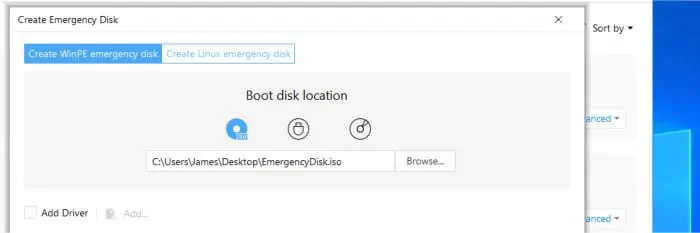
Transferring an existing live system across to new hardware via ToDo Backup beings with an existing disk image backup being taken on the original device and the EaseUS recovery media being created (for booting the new PC into during the recovery process). With both of the aforementioned pieces in place, the “System Transfer” tool (found under the “Tools” menu in the EaseUS recovery environment) can then be used to recover to the dissimilar hardware using the existing system’s disk image backup (although note that documentation from EaseUS suggests that checking and adding or updating any important device drivers on the new device should still be considered).

With the System Transfer tool set aside, ToDo Backup is also a very powerful multipurpose backup application capable of creating both file level and full system image backups to one of a number of storage targets including network shares (NAS devices), external hard drives, third-party party cloud providers (including Google Drive and Dropbox) as well as to the EaseUS Cloud itself. Other useful features include the provision of a good automatic scheduling engine, support for strong AES 256-bit encryption, use of the EaseUS Security Zone storage technology and a specialist Microsoft Outlook backup tool amongst many other useful features.
DiskImage 20 is the latest specialist disk imaging-based backup technology from specialist utility software developers, O&O Software. This is a powerful piece of backup software which features, amongst many other useful functions, the M.I.R restore technology which can assist in restoring existing systems across to new or otherwise dissimilar hardware with ease.
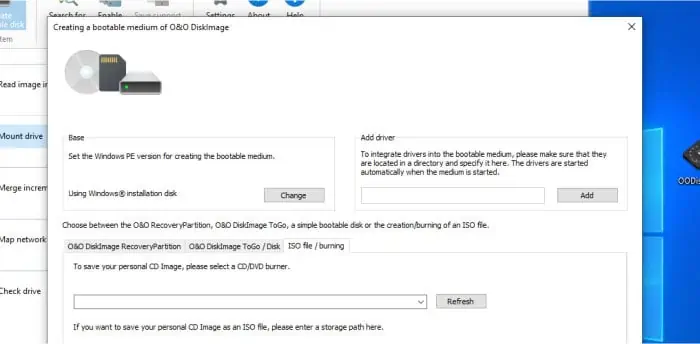
As is commonly the case with such restore operations to dissimilar hardware, the Machine Independent Restore functionality (M.I.R) found within DiskImage 20 relies upon a full system image-based backup first been taken and the new system first booted in to the DiskImage recovery environment. Once in the recovery environment and performing a restore of a full system image-based backup, a special option (found under the “Additional options” menu during the restoration process) labelled “Adapt to different hardware” must be selected to accommodate the different hardware now in-use.
With the M.I.R recovery functionality set aside, DiskImage 20 remains a solid disk imaging-based backup solution in its own right with many options available for making full system backups manually or on an automated schedule. DiskImage 20 also includes the ability to apply strong AES 256-bit encryption, save disk images in VHD or VHDX formats (and mount said VHD or VHDX files within Windows) whilst also offering potentially unlimited historic file versioning as well.

Other useful features including the one-click disk imaging tool and support for migrating existing systems to SSD drives (with 4K sector alignment and partition re-sizing) also exists within DiskImage 20 as does the option to make regular full and incremental file-level backups as well.
Macrium is one of the most popular names in disk imaging technology thanks to its excellent Reflect line of PC backup software which supports many advanced disk imaging-based backup and disk-to-disk cloning features.
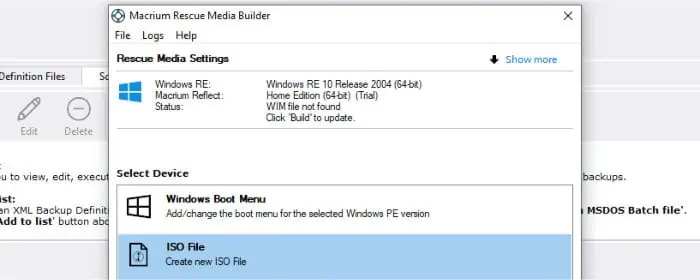
One of the most important functions found within Macrium Reflect X and the key technology which sees it included on this list is that of Macrium ReDeploy, a solution which allows for automatically optimising and restoring disk image-based backups onto new or dissimilar hardware. As with many other image-based software solutions which support restoring to dissimilar hardware, Reflect ReDeploy requires a full system image backup first be taken and then that the ReDeploy technology be activated when booting into the new device using the Macrium recovery media.
Once booted into the Macrium recovery environment on the new device, the ReDeploy system will assist in seeking and adding any new or required drivers for the new hardware as might be applicable before completing the migration and recovery process in due course.

Moving past this ability to recover to new or dissimilar hardware and Macrium Reflect also features many other useful technologies for helping to keep a PC and its data safe. Such features include file-level and full disk image backups, automatic backup scheduling, strong AES 256-bit encryption, the ability to mount disk image files as virtual drives within Windows plus support for directly cloning disks (including 4K sector alignment for SSD drives) amongst many other useful additions.
AOMEI Backupper is a well-designed and easy to use piece of backup software featuring support for full system image backups alongside use of the AOMEI Universal Restore technology which supports migrating disk image-based backups across to new or dissimilar hardware.
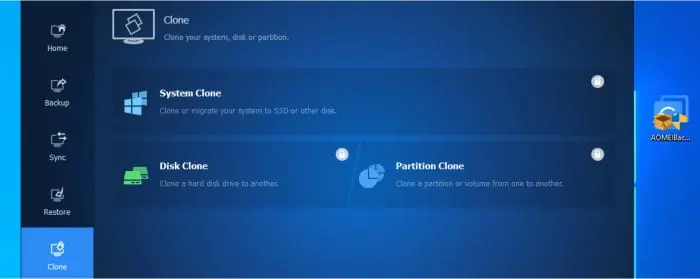
When making use of the AOMEI recovery environment to recover from a full system image backup, the AOMEI Universal Restore option can be switched on via the buttons found towards the bottom of the window. Once activated, Backupper will assist in automatically preparing and optimising the existing disk image backup of the source computer as it is migrated over to the new or dissimilar hardware.
NB – The Universal Restore component is only available in the (premium) AOMEI Backupper Professional edition or higher (including business versions). AOMEI do produce a free-to-use edition of Backupper which remains a great way to test out this software, but does not support universal restores as of now.

With the Universal Restore functionality aside, AOMEI Backupper remains a solid multipurpose backup tool which is easy to use and configure and features support for both file-level and disk image backups. Additional support is also included for directly cloning between physical disks (including SSD 4K sector alignment), automatic folder synchronisation between devices plus provisions for protecting backups via strong AES 192-bit encryption amongst many other useful additions.
Backup & Recovery is a popular disk imaging backup application which supports recovery to dissimilar hardware and is now available as a part of the Paragon Hard Disk Manager suite.
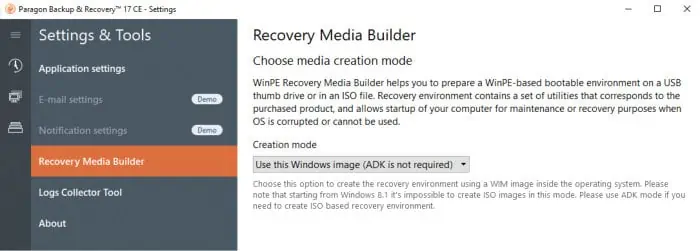
Paragon Backup & Recovery, in much the same way as the other entries on this list, supports the migration of disk image-based backups from an existing system across to new or dissimilar hardware via the use of specialist recovery media. Once this special Paragon recovery environment has been booted into, the P2P Adjust OS wizard can then be activated and used for preparing and optimising the disk image backup from the source system for use on the new hardware (which includes accommodating any new device drivers as applicable).
With the P2P OS Adjust tool set aside, Backup & Recovery is also a very strong multipurpose PC backup solution in its own right featuring the ability to make both disk image and file-level backups. Also available within the software are options for applying strong data encryption and making use of automatic backup scheduling as might be required.

Additionally, being a part of the larger Paragon Hard Disk Manager suite means that Backup & Recovery also features many other useful tools including specialist disk cloning tools (with support for automatically optimising SSD drives), secure disk wiping and data destruction tools, advanced formatting and partition management tools plus support for Windows VHD and VHDX file formats amongst other additions.

